Review Part 2: Navigation Apps on Android
- review our experience with off-line navigation after 35,000 kilometres,
- add my 2 Cents worth about other navigation apps not covered in this review.
This series of articles is still relevant if you want to learn all about the features of the 2 apps reviewed: MapFactor Navigator & Skobbler/Scout. Be warned: it’s long ;)

Skobbler in 3D view
The Map Displays
It’s interesting to see how differently companies render the same OSM maps; I have now installed a third app, OsmAnd , and it’s different again. Overall it could possibly be advantageous to use the navigation apps in portrait mode, since these apps were initially created for hand-held mobile phones but, in our truck, the tablet can be mounted much more securely when horizontal.
Skobbler/Scout
The maps of Skobbler are very similar to the familiar look of paper maps. You also get clearer green shades left and right when there are nature reserves, parks, or sometimes farming land alongside the road. But, reading any written information, like street names, whilst driving is rather difficult due to the small font size. The same applies for me to my ‘real’ driving speed, bottom left; although this might be due in part to the distance at which the tablet is mounted. The arrow and distance in km in the top left remains on ‘straight’ until you almost reach the next turn, whereas Navigator’s arrow will show the next upcoming turn, even if it is many kilometres ahead.
One thing I really like about Skobbler is how easily you can scroll through the map, move left or right, up or down, zoom in or out, with 2 fingers – everything just works completely smoothly.
Skobbler adds a clear alert to the top of the screen when you’re driving through a tunnel or under dense tree cover (the latter has only happened once): the top of the screen is red and informs you about loss of GPS signal. It’s quite interesting to watch how quickly a tablet can regain the GPS reception and how fast the navigation app catches up. Skobbler is actually quite good at calculating the distance travelled and giving you fairly correct instructions if there’s a turn-off inside a tunnel (with no GPS signal).
MapFactor Navigator
Before I describe Navigator’s maps let me explain something: in Navigator’s settings you can adjust the font size in which roads, names, and POIs are displayed – I have all three set for a comfortable level of readability. (I haven’t found any such option in Skobbler’s settings.) Nevertheless, I find Navigator’s map rendering rather coarse, with a gaudy colour choice. On the other hand, Navigator shows a few details I haven’t seen on Skobbler yet. For example, roads of gated estates, and other private roads, are marked with small red crosses on the road surface.
An annoying issue with Navigator is that, unlike in Skobbler, the maps are not very responsive to finger scrolling. Instead there are a couple of buttons on the left [+/-] to zoom in and out. Either there is a lag in the maps response or, once you’ve started a navigation, it’s nearly impossible to move away from the current map focus. When I review a route in Skobbler, after the app has finished calculating it, I can follow the entire route on the map screen with simple finger movements. In Navigator I have to go into the Menu > Route Info > Itinerary > Show on Map to review the route ahead, which is way more complicated. Then again, until now, I haven’t found any menu point in Skobbler where I can review details of an itinerary.
Since I mentioned above Skobbler’s red bar across the top of the screen when the GPS signal is lost, I should also state that Navigator announces this with an electronic sound – it took me ages to work out what this noise meant.
Navigator also has a nifty feature: you can completely customise the bottom of the screen! You can add and remove information – you can choose which details are displayed, and to some degree decide on their order. Among them are ‘Number of Satellites’ within reach, Azimuth, GPS Position, Time to Destination, Distance to Destination, and a few more. A glimpse down there confirms quickly if the GPS signal is lost.
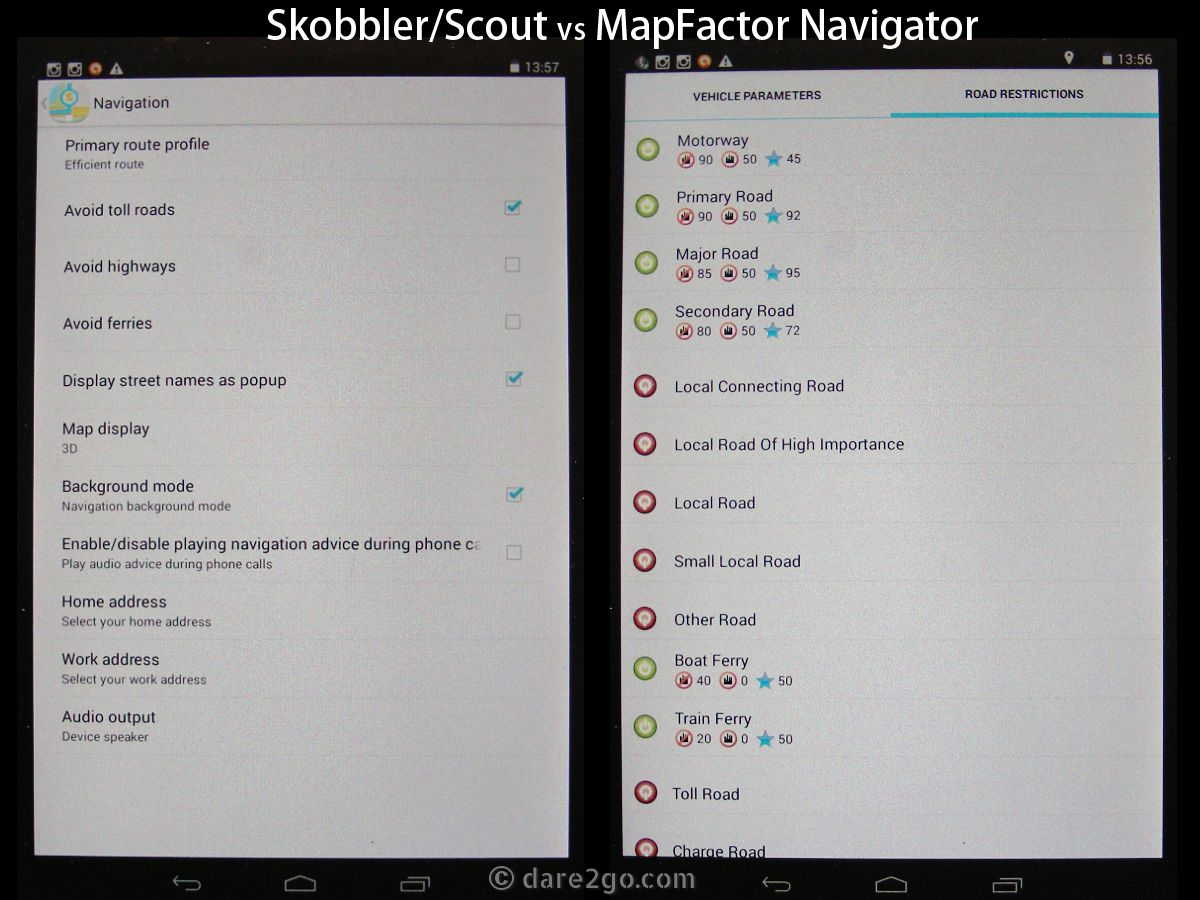
Settings options to influence routing
Settings to Influence Routing Results
Under ‘Settings’ both apps have a number of options which should – theoretically – impact on the routing results. At this stage I should mention my current settings as these will, in one way or another, filter through to the routing results in Part 3 of my Navigation App Review.
My personal preference is to take as many secondary roads as seem feasible; we are travelling and we want to see things, not rush from A to B along motorways – even if it takes longer! We are unlikely to come back and explore places left and right of the main highways at a later time… I guess this is something that most navigation software is not set up to handle very well – their aim is to get you from A to B along the quickest, easiest, and most direct way. And that’s probably what most people expect of them too.
Skobbler/Scout
Skobbler has one setting which is annoyingly ignored in all routing results here in South America: “Avoid Toll Roads”. With a vehicle the size of ours, this can get quite expensive. I can choose an option “Avoid Highways”, but in Chile (where we are now) most long distance roads have been widened into highways, so consequently to stay off highways entirely means excessive detours. [pullquote-right] Tip for Overlanders to avoid some road charges in Chile: follow the route for trucks carrying ‘Dangerous Goods’ (usually a well sign-posted and maintained by-pass of tunnels)![/pullquote-right] Yet, around central Chile many toll stations are near tunnels, and trucks carrying dangerous goods aren’t allowed to drive through tunnels, so the road replaced by the tunnel is maintained to serve as a tunnel bypass for dangerous goods vehicles. This gives one way to avoid many toll stations, except that Skobbler seems unable to include these bypasses in its routing. So I keep paying, or make up my own route.
MapFactor Navigator
With Navigator I can set up a vehicle profile with more refined settings. Currently I have one called “Berta” as a truck with 3.5 tons axle weight; to go any higher you need to pay for an upgrade, which seems ineffective as OSM maps don’t provide much information in regard to truck restrictions. In many countries the optional update to TomTom maps (for a fee) would deliver such information. I have set a maximum speed of 90km/h (realistic) and under “Road Restrictions” my preferences are as follows:
- Motorway: 90km/h outside towns, 50km/h inside towns, Preference 45/100
- Primary Road: 90km/h outside towns, 50km/h inside towns, Preference 92/100
- Major Road: 85km/h outside towns, 50km/h inside towns, Preference 94/100
- Secondary Road: 80km/h outside towns, 50km/h inside towns, Preference 72/100
There are other categories, like “Local Connecting Road”, “Other Road”, “Toll Road” and “Charge Road”, but in my version I seem to be unable to edit or adjust these. Other than the above settings, I have set Navigator to use the ‘cheapest route’ (whatever the software makes of that).
Closing of Part 2
Without the major issue that Skobbler/Scout has lost its offline street search, it would be the winner when it comes to search functions and other features, like responsiveness to map scrolling.
That in Skobbler/Scout the complete street index is now only available with data connection makes it completely useless for international travel in larger cities. In most cases, if you decide to buy a data SIM in a foreign country at all, you would probably do so after arriving in the first city. You cannot necessarily rely on international roaming either, as I know from experience that not all mobile providers can offer worldwide coverage with roaming partners. But, to be able to navigate to any clearly defined point in the first city of a foreign country, you now need a data SIM and data connection.
I had initially thought to cover everything in two parts, but then I went into more detail than anticipated for completeness sake – now Part 3 of my Android Navigation App Review covers all routing results.










We’re part old school in that we love our electronics but we also love our big wall maps that we stuff in our suitcases. I’m looking forward to trying both of these apps in 2015 while we’re trying to navigate our way around some of Europe’s cities. I’ve also bookmarked all three sections of this post for referral later – thanks for sharing.
Until recently I would have called myself “old school” too, though last trip (up to 2009) we travelled with a Garmin GPS. I’m sure in Europe you will encounter much less hiccups with these apps than we do in South America – after all: both are of European origin!
How nice to have this all laid out and explained! I’ll come back to it again later.
…do so! I understand that it takes time to take it all in.
We’re Apple folks, but I can certainly appreciate the effort involved in this series. We use nav apps all the time (at the risk of becoming very dependent upon them – which sometimes doesn’t let serendipity do its thing).
I confess: I think I could not go without the navigation app either.
I haven’t really tried doing this type of navigation yet, what a great introduction, will have to study in more detail
Certainly worthwhile a try, in cities like Santiago I quite often use the pedestrian mode. It certainly help to find your way around.
Just read your interesting summary of the good and not so good about Airbnb, which was very interesting and gave me lots of food for thought. I enjoyed this post too, and as someone who is not a good navigator at all, I’m going to read Part 1 as well because it looks like something I need to learn and come to grips with.
Navigation with your mobile is certainly the way into the future. Right now very helpful but not 100% reliable; but it sure will improve very rapidly. I can’t even imagine anymore how we used to search for museums and other sights in foreign cities by using substandard maps in guidebooks and asking locals.